
Free for MSP service delivery managers
Keep every client informed, even in the middle of an outage.
TetherOps shows you which client update is due next, helps you write it in the tone each client expects, and keeps a record of everything you said.
- Free
- No account
- Data stays on your PC
- AI optional
The problem
The fix is rarely the hard part.
The hard part is the people waiting for news. During an outage your PSA tracks the ticket, but nothing tracks the promise you made to update the client by three o'clock.
-
Updates slip when it gets busy
The moment you are firefighting is the moment the next update is due. Silence is the update clients remember.
-
Every client wants it differently
One wants a two-line text to the MD, another a technical email to the whole IT team. Getting it wrong costs trust.
-
The history lives in your head
What was said, to whom and when is spread across inboxes. When an account changes hands, most of it goes with you.
What changes
One place for every promise you make to a client
-
Know what is due next
A single queue across all your clients: overdue incident updates, check-ins, reviews and follow-ups, with the next one at the top.
-
Write the right update, fast
One situation becomes a draft per contact, shaped by each client's agreed tone and cadence. Write it yourself or with your own AI key.
-
Show what was said, and when
Every update you mark as sent joins the client's communication record, ready to export when a client, auditor or insurer asks.
-
Hand over without losing anything
A handover pack gives the next service delivery manager the client's preferences, open work and recent history in one read.
It sits alongside your PSA or ticketing tool. TetherOps does not replace your tickets; it looks after the conversation around them.
How it helps
One outage, start to finish
A client's email goes down mid-morning. This is where TetherOps earns its place.
-
09:05 · The alert
Declare it once
You log the incident against the client. Their agreed update cadence for a P1 sets when the first update is due, and it appears on Today.
-
09:20 · The first update
Right words for each person
One set of facts becomes a short note for the MD and a fuller one for the IT manager. A check flags anything that should not go out. You send it from your own email and mark it as sent.
-
09:50 · On the bridge call
Nothing slips
The next update is due while you are deep in the fix. It sits at the top of Today, with how late it is, until it is done.
-
11:10 · Restored
Close it properly
A restoration note goes out, the incident closes, and the post-incident review is queued so it is not forgotten.
-
Next week · The review
Show your working
The review pack and the full record of every update, who got it and when, are ready for the client meeting, an audit or the next person on the account.
How it works
From the first alert to the service review
These screens use the built-in fictional demo. You can load the same demo the first time you open TetherOps and try every step without touching real client data.
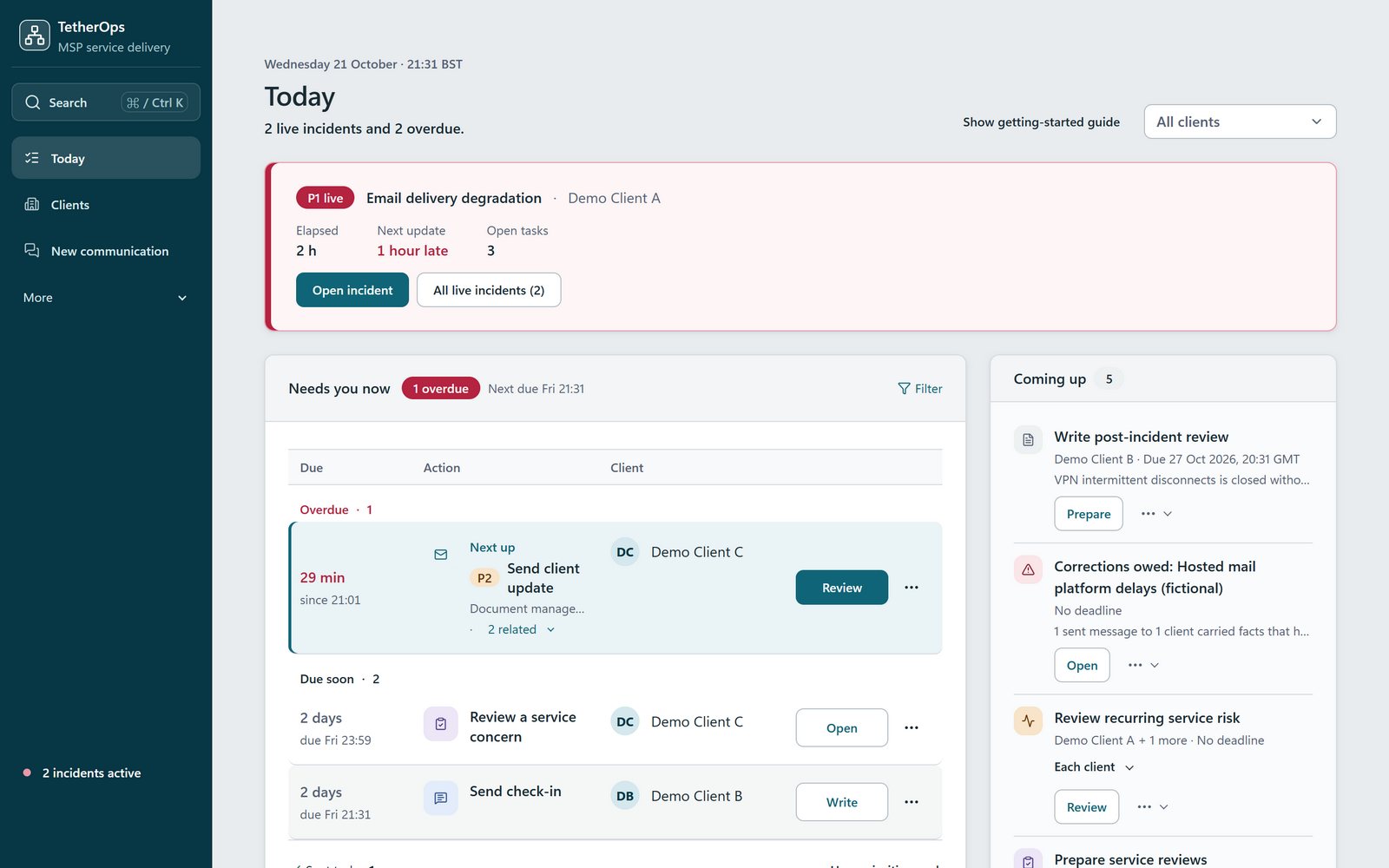
Start of the day
See what needs you now
- Live incidents with how long they have run and when the next update is due.
- Overdue updates, check-ins, reviews and follow-ups in one list.
- Filter to one client when you are on a call with them.
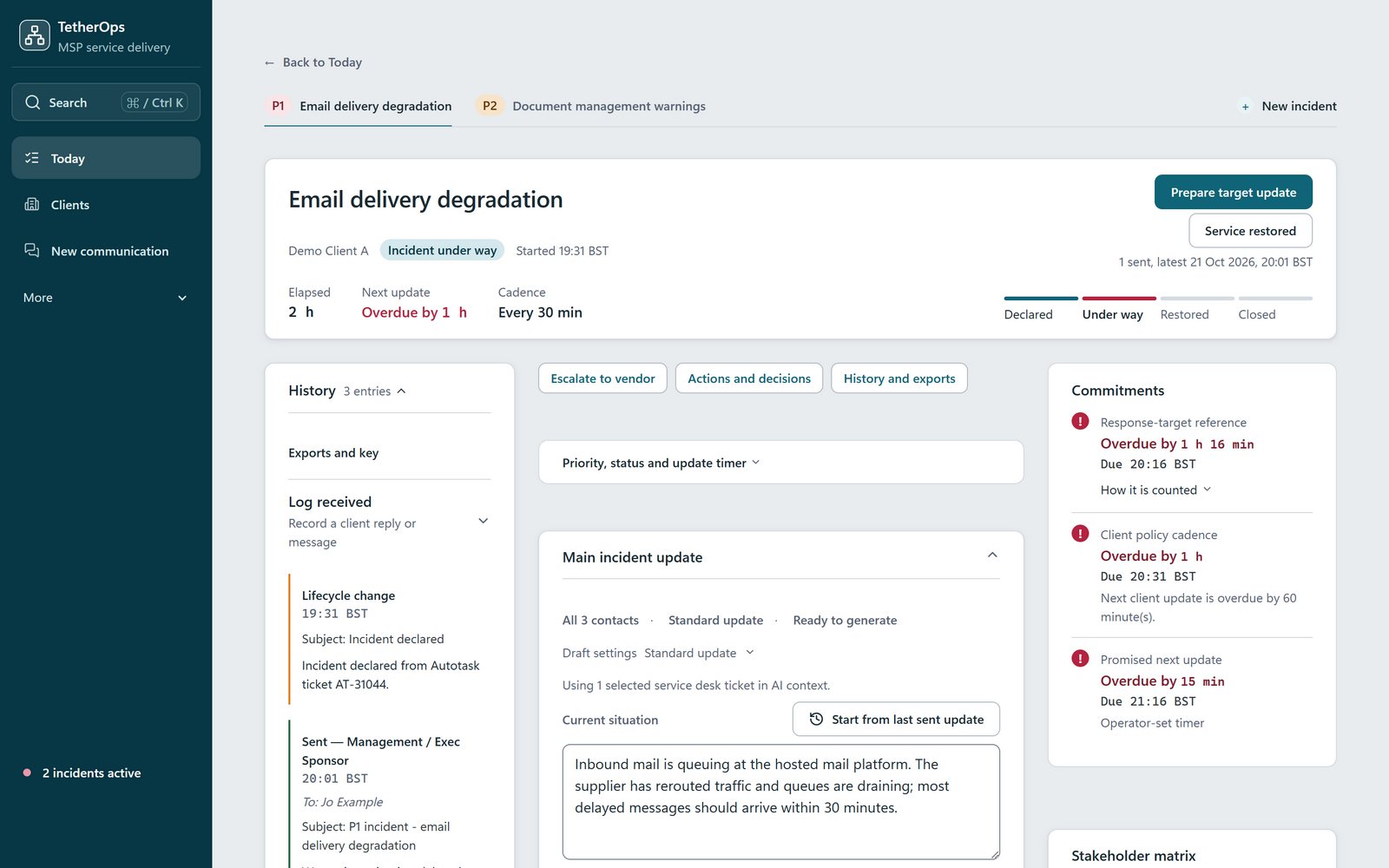
An incident starts
Run the incident without losing the thread
- Track it from declared to restored and closed.
- Response targets, client cadence and promised updates in one panel.
- History, decisions and supplier escalation beside the update you are writing.
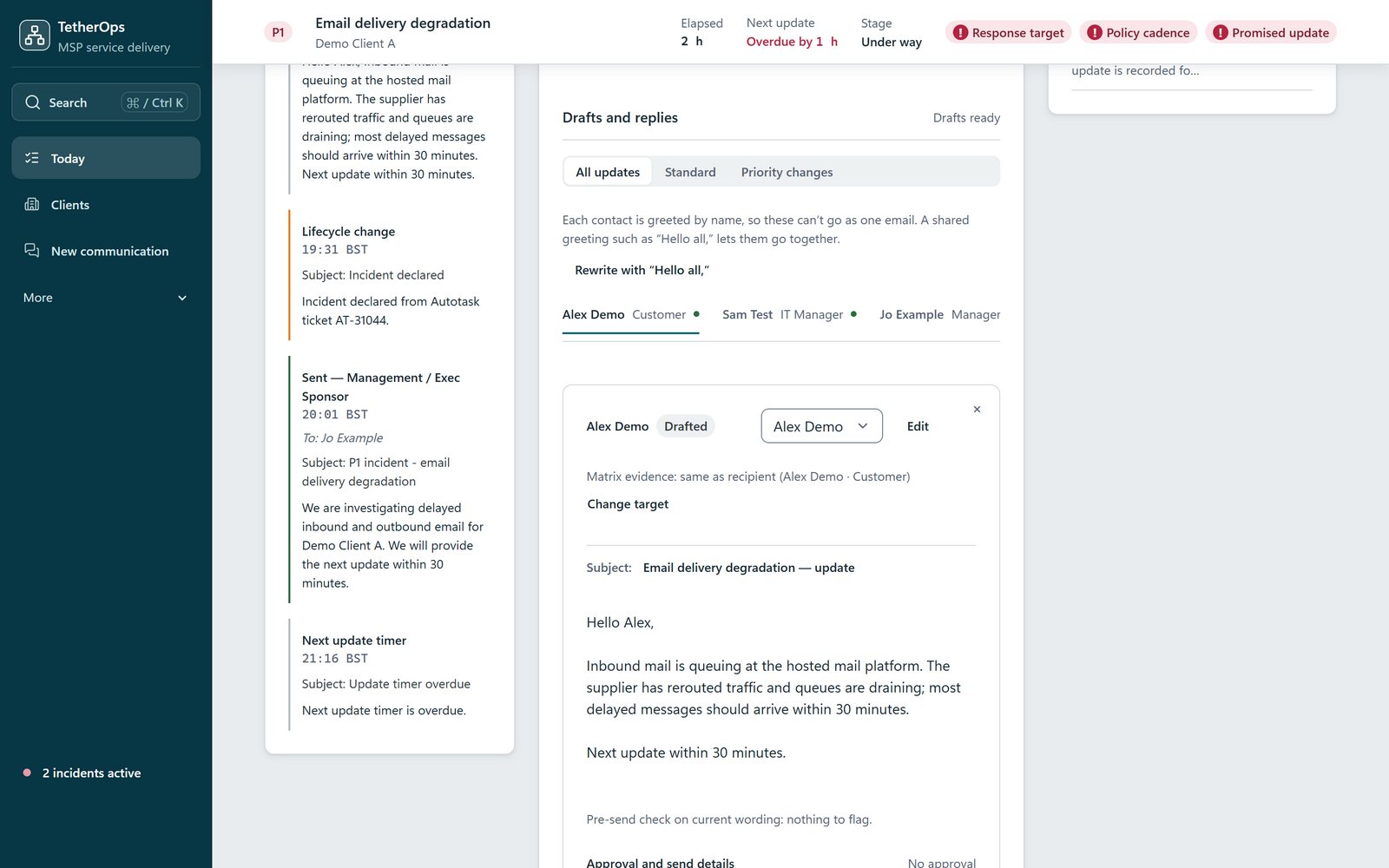
The update is due
A draft for every stakeholder
- One set of facts, a draft per contact, in the tone each client expects.
- Pre-send checks flag another client's name, a leftover placeholder or a promise nobody has confirmed.
- Copy it or open it in your email app, then mark it as sent.
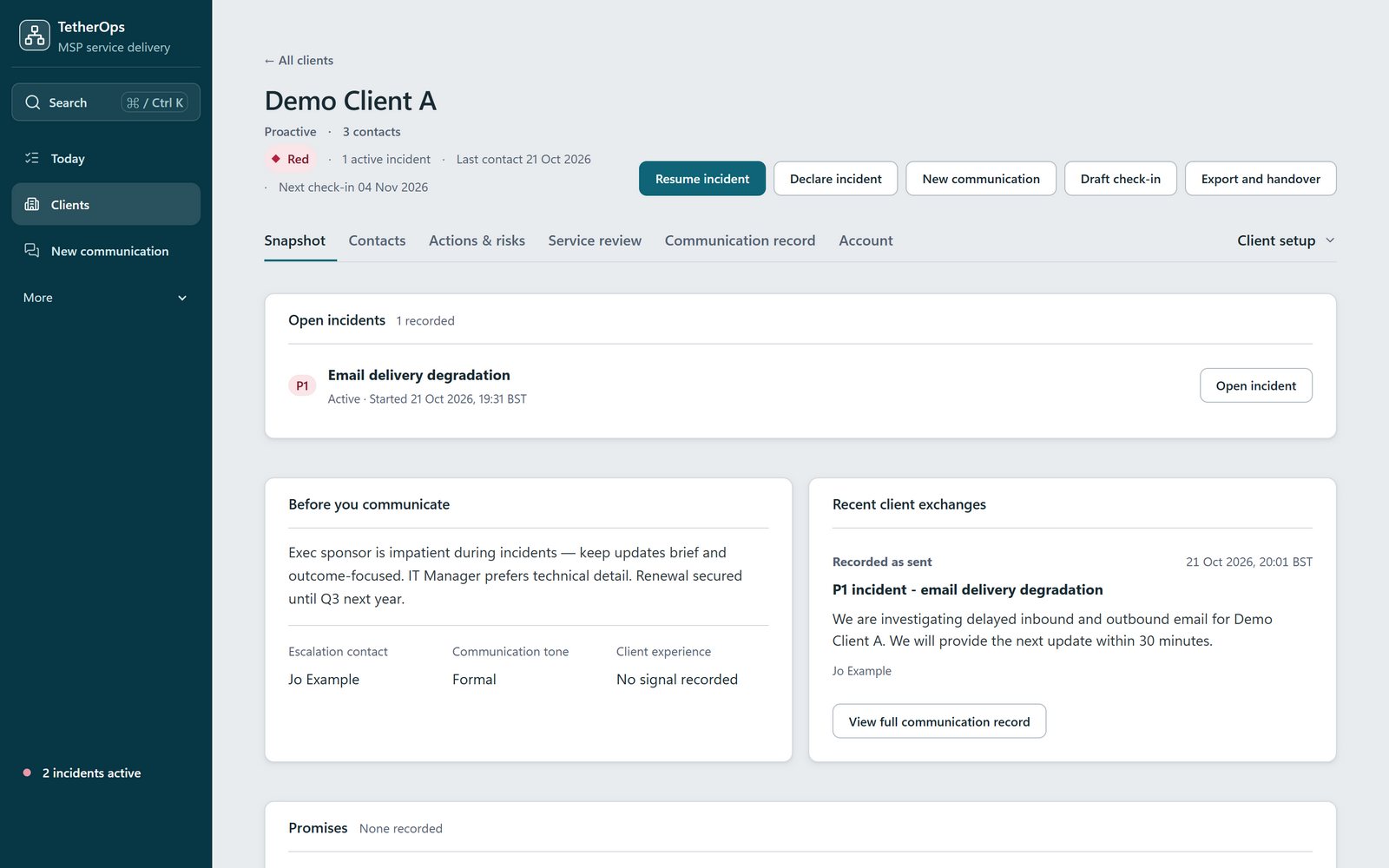
Before you write
Know the client before you speak to them
- Red, amber or green health with the reasons behind it.
- Agreed tone, cadence and who to include, ready to check.
- Recent exchanges, promises and contacts in one profile.
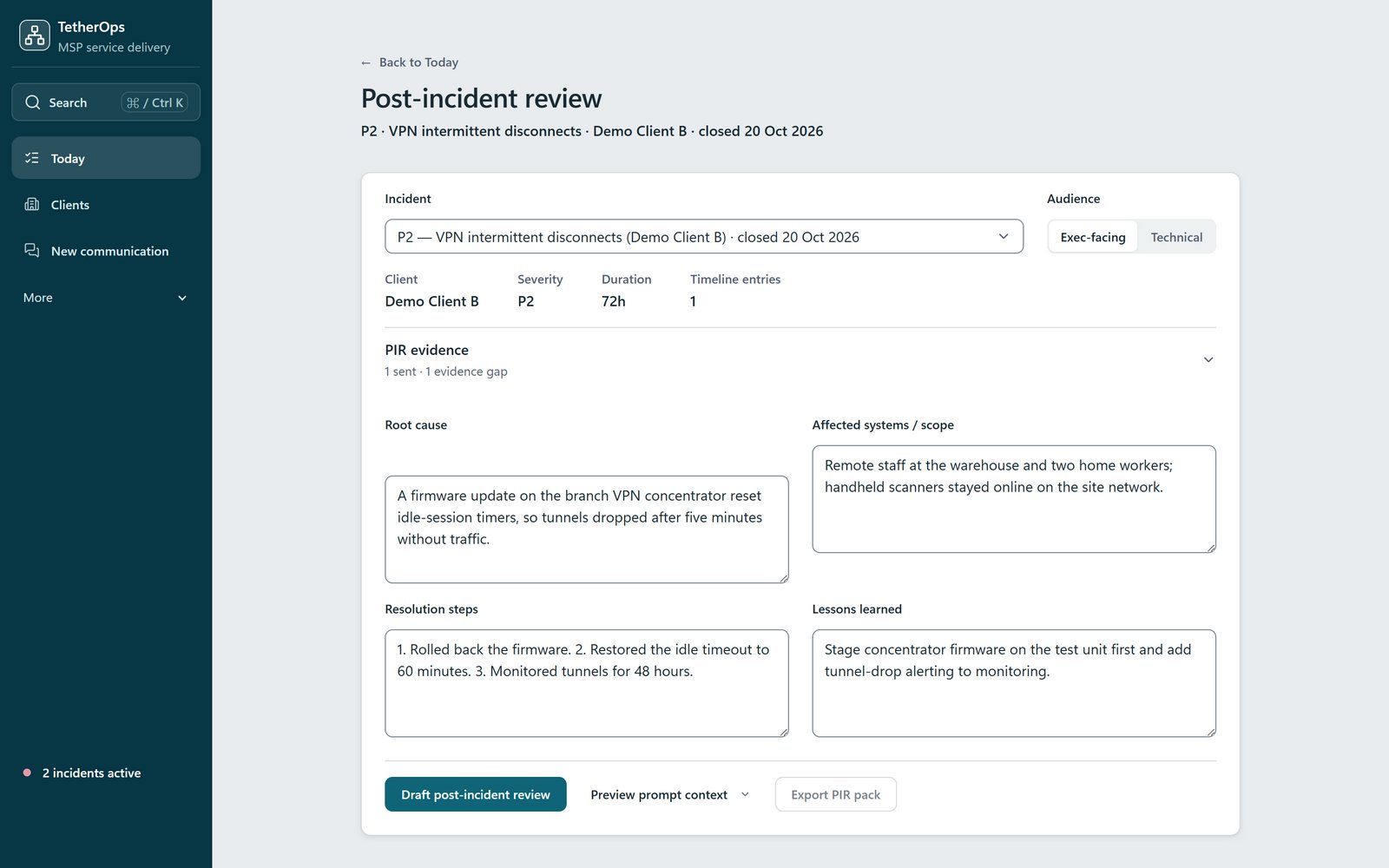
After it is fixed
Close the loop with a proper review
- Root cause, scope, resolution and lessons learned in one form.
- An executive summary or a technical version from the same facts.
- Export the review pack to share with the client.
Every month or quarter
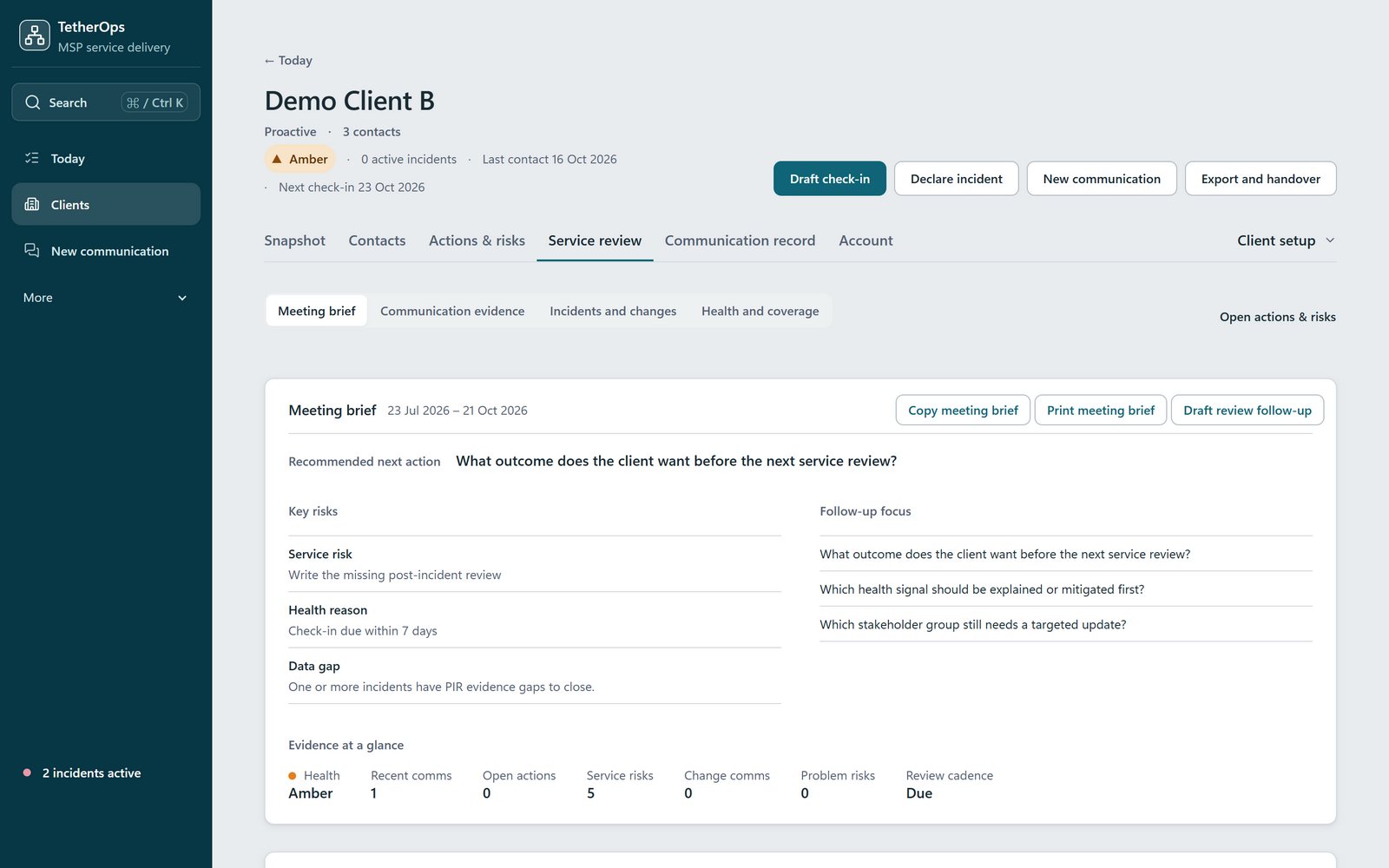
Walk into the service review prepared
- A meeting brief with key risks, questions to ask and the evidence behind them.
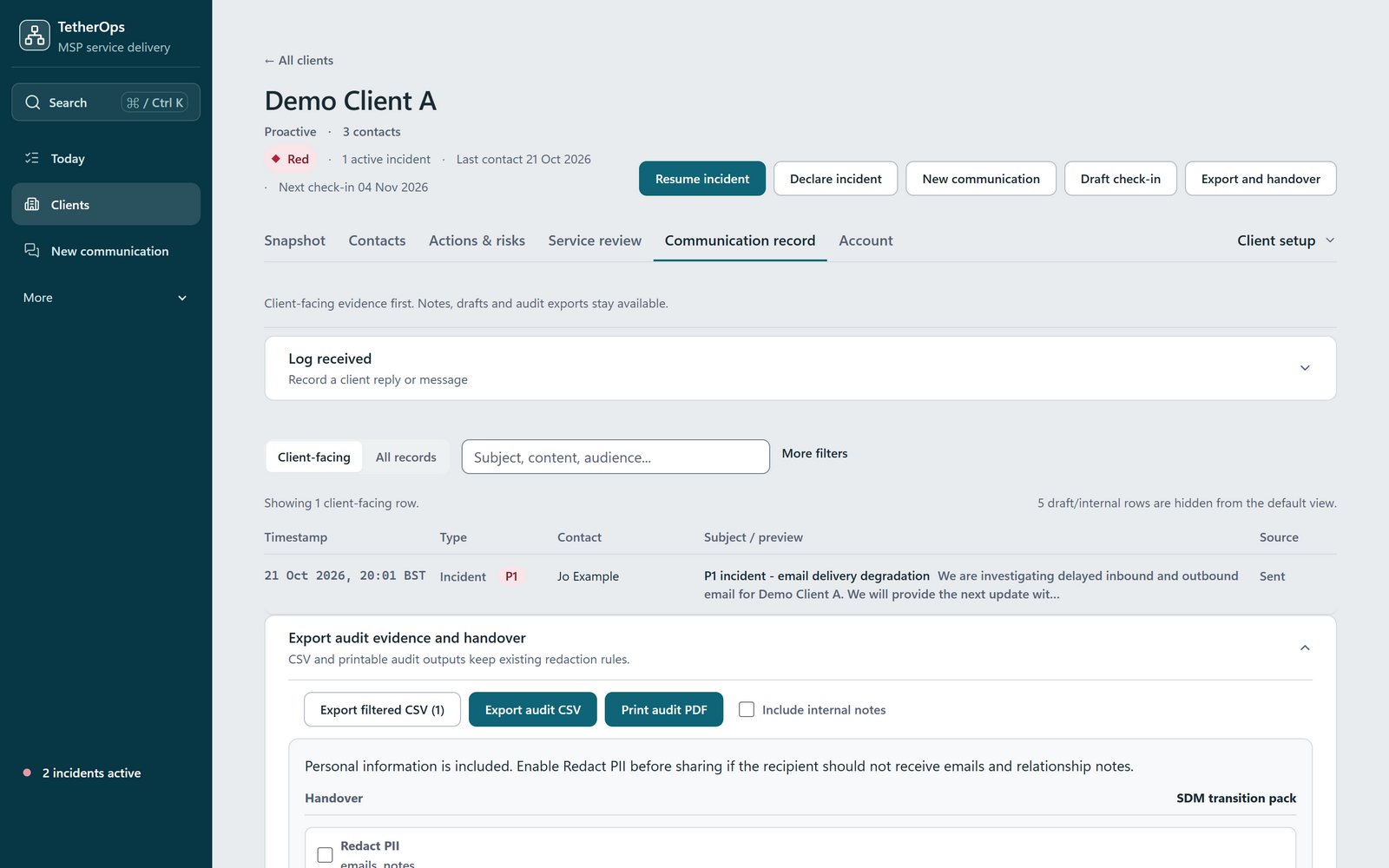
- A communication record per client, with CSV and printable exports.
- A handover pack for the next service delivery manager, with personal details redacted on request.
-
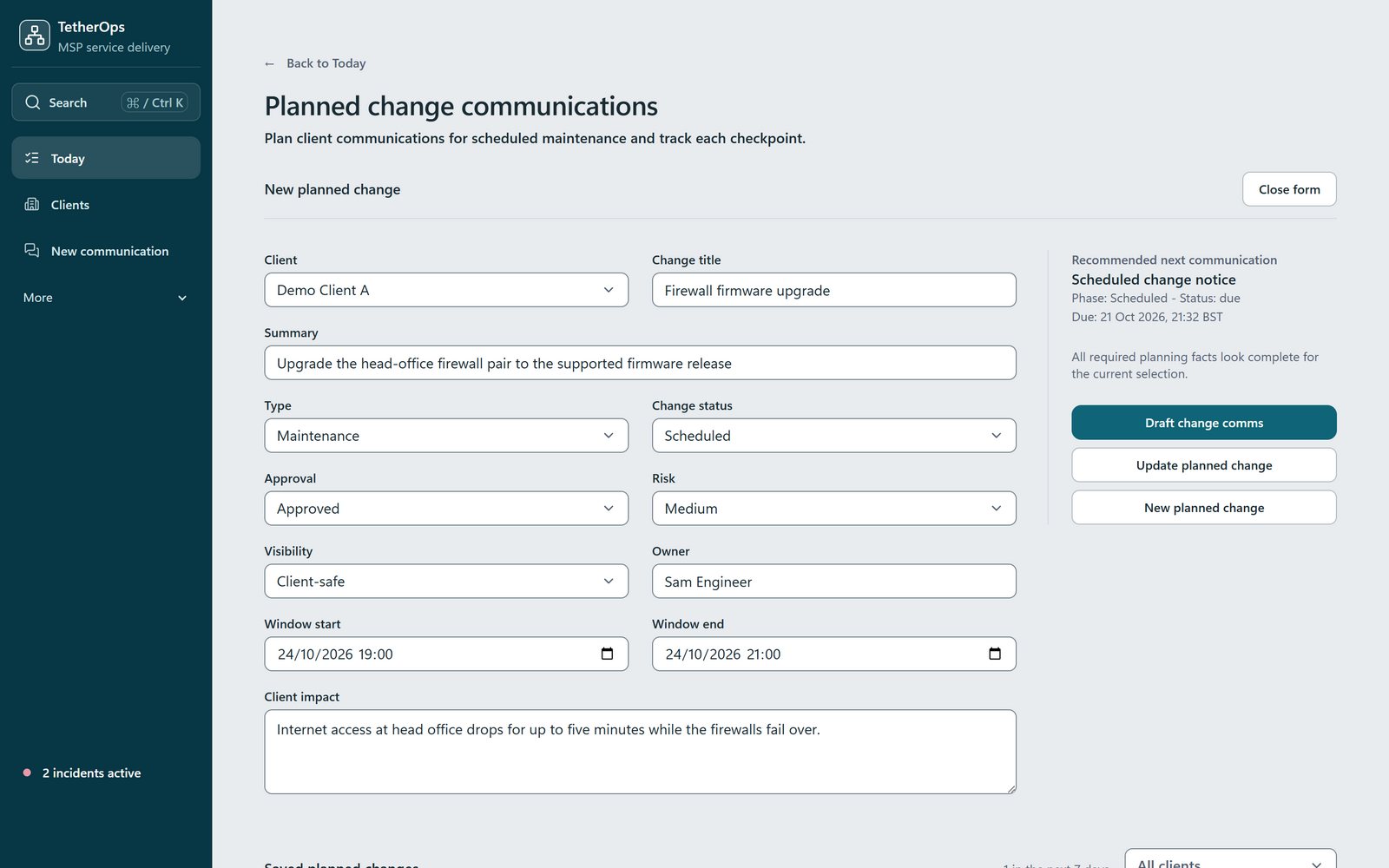
Planned changes. Change window, risk, approval and the client notices due, from first announcement to completion.
-
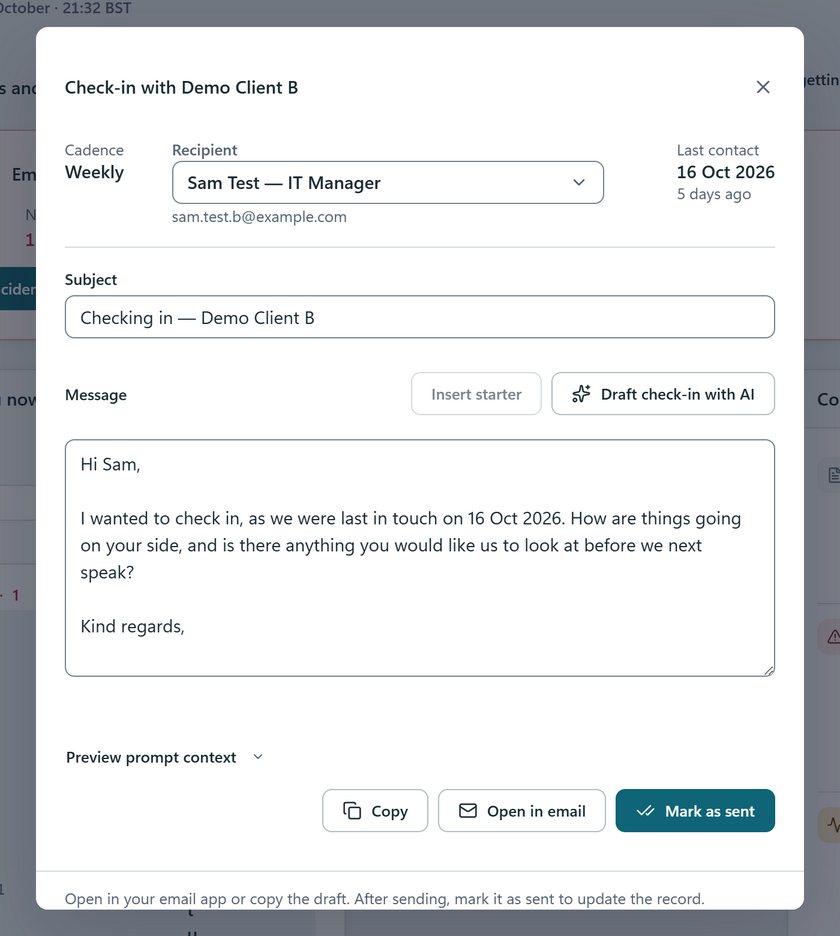
Check-ins between incidents. An agreed cadence per client and a starter message that knows when you were last in touch.
-
Playbooks. 24 built-in playbooks for common incidents and conversations, and your own templates.
Your data, your call
Built to be trusted with client information
Client communications are sensitive. TetherOps keeps them on your PC and never acts without you.
- Stays on your PC Records live in an encrypted workspace on your Windows PC. No account, no cloud copy, no telemetry or analytics.
- Asks before it sends AI is optional. If you connect your own OpenAI, Anthropic (Claude) or Google Gemini key, TetherOps lists the kinds of information a draft request contains and asks before it is sent. You can choose not to be asked again for the same client until you close TetherOps. Check API access sends only your key and the model name, never your records.
- Never sends to clients Every draft stays editable. You copy it or open it in your email app and decide when it goes. TetherOps never emails anyone automatically.
- Works offline The Write myself option drafts updates from your own facts and saved templates with no network connection. Keys, if you add one, stay in Windows protected storage and are not in the backups you save.
Why it is free
Made to be used, not sold
I built TetherOps for the part of service delivery that ticket systems do not cover: the people waiting for news. It is free, with every feature and no client limit, because I would rather it was useful to service delivery teams than sat behind a price.
If it helps you, or if it does not, I would like to hear why. Message me on LinkedIn.
Mike Little
Download
TetherOps for Windows is nearly ready
The first public release is being finished and tested. It will be free for personal and commercial use under the TetherOps free licence, with no account, no subscription and no client limit.
Coming soon
The installer and its SHA-256 checksum will appear here on release day. Follow Mike Little on LinkedIn to hear when it is out.
Follow on LinkedInSystem requirements
- Windows 10 or Windows 11, 64-bit (x64)
- No administrator rights needed: it installs for your Windows user only
- About 400 MB of free disk space
- Internet access only if you choose to use an AI provider
Before you install
Windows will warn you, and here is why. The installer is not yet
code-signed, because signing certificates cost money and TetherOps is free.
Windows SmartScreen will show Windows protected your PC
and an unknown
publisher. Step-by-step install instructions and the checksum to check the file
against will be on this page on release day.
Questions
Frequently asked questions
Is it really free?
Yes. TetherOps is free for personal and commercial use, on as many PCs as you like, with every feature and no client limit. There is no subscription, no paid tier and no sign-in. The only possible cost is your own AI provider's charges, if you choose to connect one.
Does it replace my PSA or ticketing tool?
No. Keep running tickets where you run them today. TetherOps looks after the client conversation around the ticket: who needs an update, what you told them and what you promised next. You can import tickets from your service desk tool as a file, so the context sits beside the client.
Where is my data?
On your PC, in an encrypted workspace under %LOCALAPPDATA%\Tether. It is
not uploaded anywhere and nobody else has a copy. Use Save encrypted backup in Desktop
settings and keep the backup somewhere safe, because no one can recover it for you.
Do I need an AI key?
No. Everything works without AI: the Write myself option drafts updates from your facts and templates, offline. AI drafting is an optional extra if you connect your own key.
Which AI providers does it support?
OpenAI, Anthropic (Claude) and Google Gemini, using your own API key. TetherOps asks for your approval before a draft request is sent, unless you chose not to be asked again for that client, a choice that ends when you close TetherOps. The provider's own terms apply to what you send. Check API access sends only your key and the model name, to confirm the provider accepts them.
Can my team share one workspace?
Not today. TetherOps is a single-user app: each person keeps their own workspace on their own PC. To pass an account to a colleague, give them a handover pack.
Is it safe?
TetherOps has no telemetry, analytics or crash reporting, and it talks to no server except the AI provider you choose. Your records are encrypted on disk and your keys are in Windows protected storage. The installer is not yet code-signed, so check its SHA-256 checksum against this page before running it. Read the privacy notice for the details.
Is there a Mac or Linux version?
No. TetherOps is for Windows 10 and Windows 11 (64-bit) only.
How do I get updates?
TetherOps does not update itself. New versions are published on this website: check back here, download the new installer and run it. Your data is kept.
What happens to my data if I uninstall?
Uninstalling keeps your data, so you can reinstall later and carry on. To remove it as
well, delete the Tether folder under %LOCALAPPDATA% after
uninstalling, once you have any backups you need. Deleting that folder is also the
only way to remove a whole workspace or a record TetherOps has set aside: the app
itself does not delete clients, incidents or communication history.
How do I get support?
TetherOps is a free project with no formal support. Questions and feedback are welcome: message Mike Little on LinkedIn.
Try it on a fictional incident in five minutes.
Install it, load the demo from the getting-started guide and run an outage from first alert to review.
Coming soon for Windows